
Workforce identity · Public
Brand your sign-in and portal
Set sign-in copy, default language, portal text, logo, and background image before members see the workforce experience.
Branding controls how a Workforce Identity tenant looks during sign-in and on the workforce portal. Members see these surfaces before they reach any connected application.
Open branding in IAM
Sign in, switch to your enterprise tenant, and open IAM → Branding. You need the branding:edit permission.
What you can edit
Update the fields, save, then check the preview actions on the same page.
| Field | Where it appears |
|---|---|
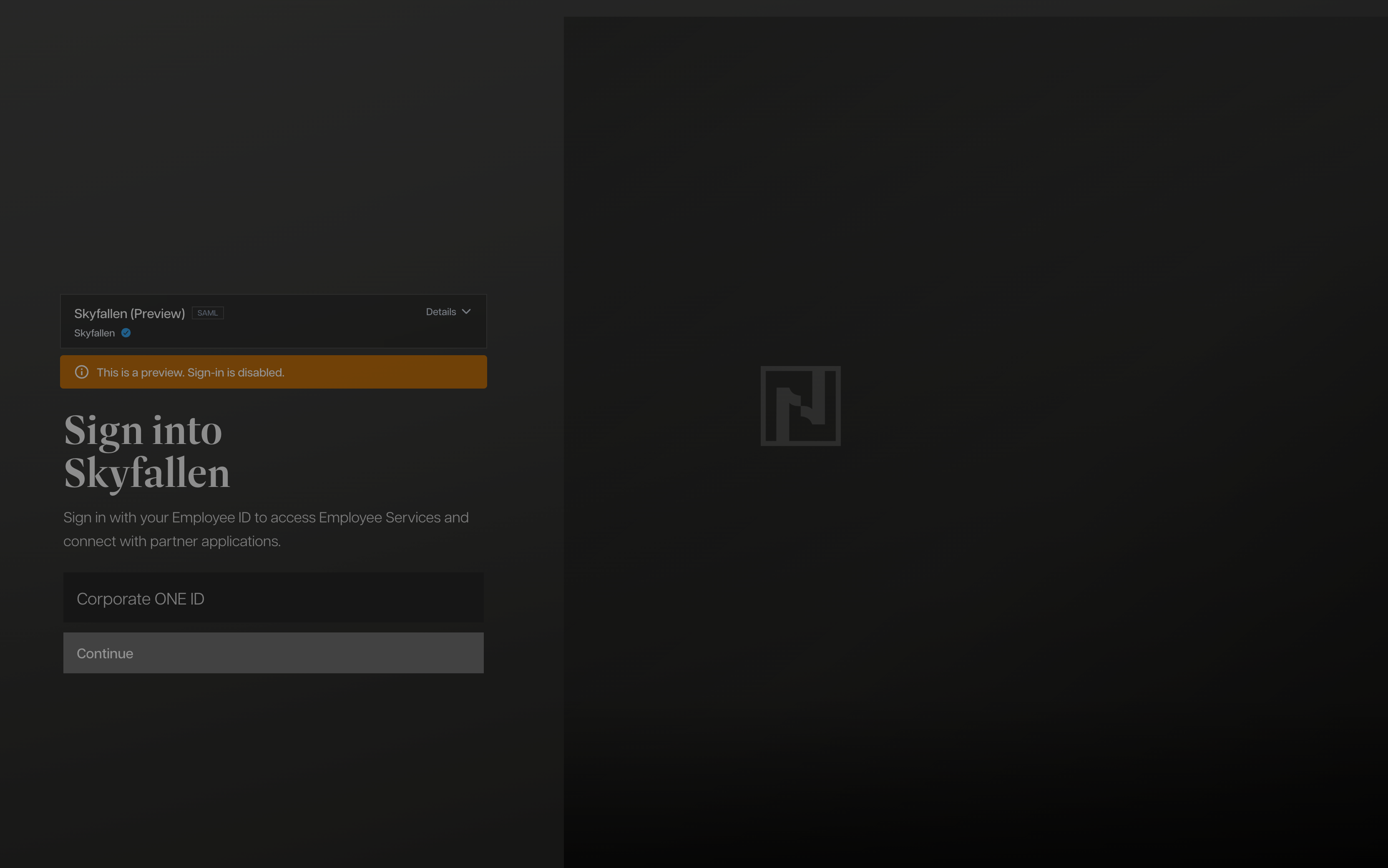
| Sign-in title | Enterprise sign-in screen. |
| Sign-in description | Enterprise sign-in screen. |
| Layout | Places the sign-in panel on the left, right, or center. |
| Title font | Uses Dashiell or Articulat for sign-in headings. |
| Center layout options | Background type, logo position, and fluent solid panel for the center layout. |
| Side layout options | Form background: Frost (tinted from the background image, including the splash passepartout) or a fixed color. |
| Footer | Optional footer text with Terms of Service and Privacy Policy links. |
| Application information | Optional pre-sign-in app details with position, style, and field visibility. |
| Center background | Uses the background image, a fixed color, a fluent solid color, or a gradient with the center layout. |
| Default language | Tenant-facing sign-in and portal experience. |
| Portal title | Workforce portal heading. |
| Portal subtitle | Workforce portal supporting line. |
| Portal description | Longer portal text. |
| Logo | Sign-in and portal surfaces. |
| Background | Enterprise sign-in screen. |
Preview before handing over
Use the preview actions after saving changes. The sign-in preview is disabled for real authentication; it is there to check layout, copy, image contrast, and language.
Keep the sign-in title short. Put details in the description or portal text, where they have room to breathe.
When custom domain is enabled, preview and live sign-in use your custom hostname. Vanity preview URLs on {subdomain}.skyfallen.one redirect to that hostname for an accurate check.
Asset notes
Upload images that still read clearly when cropped. Logos should work on dark backgrounds. Backgrounds should support text instead of fighting it.