
Getting started · Public
Create your ONE account
Register a ONE ID, pick the tenant type that fits, and know what to expect before your organisation is ready to use.
Every path into Skyfallen ONE starts with a ONE ID. Open auth and choose Create a Skyfallen ONE ID, or go straight to the sign-up flow if you already have the link.
Register your ONE ID
The flow asks for your legal name and birth date first. Use the same spelling as on your identity documents.
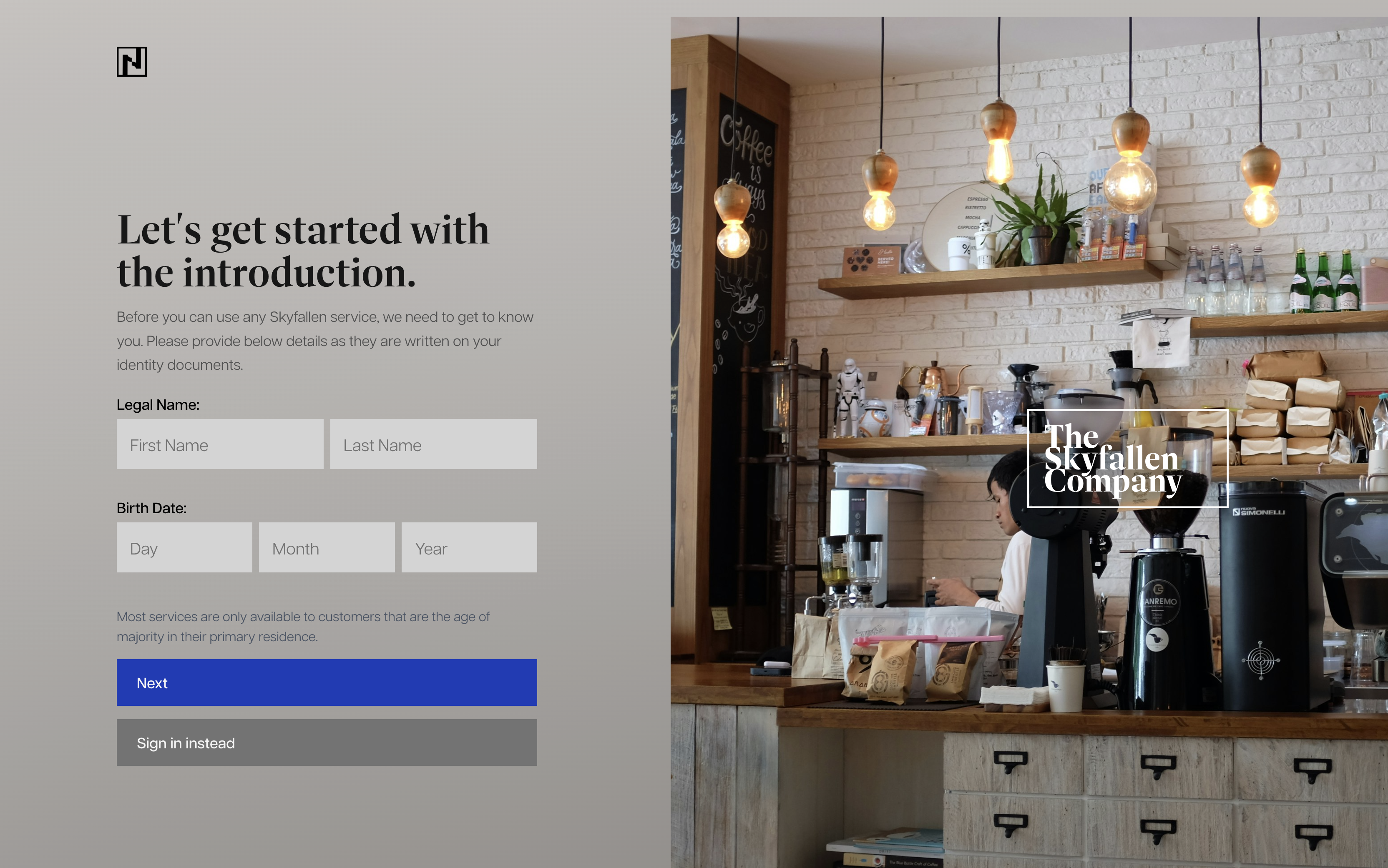
Next, add an email address and phone number. If you plan to run an enterprise tenant, use a corporate email here — that domain becomes the default workforce domain later.

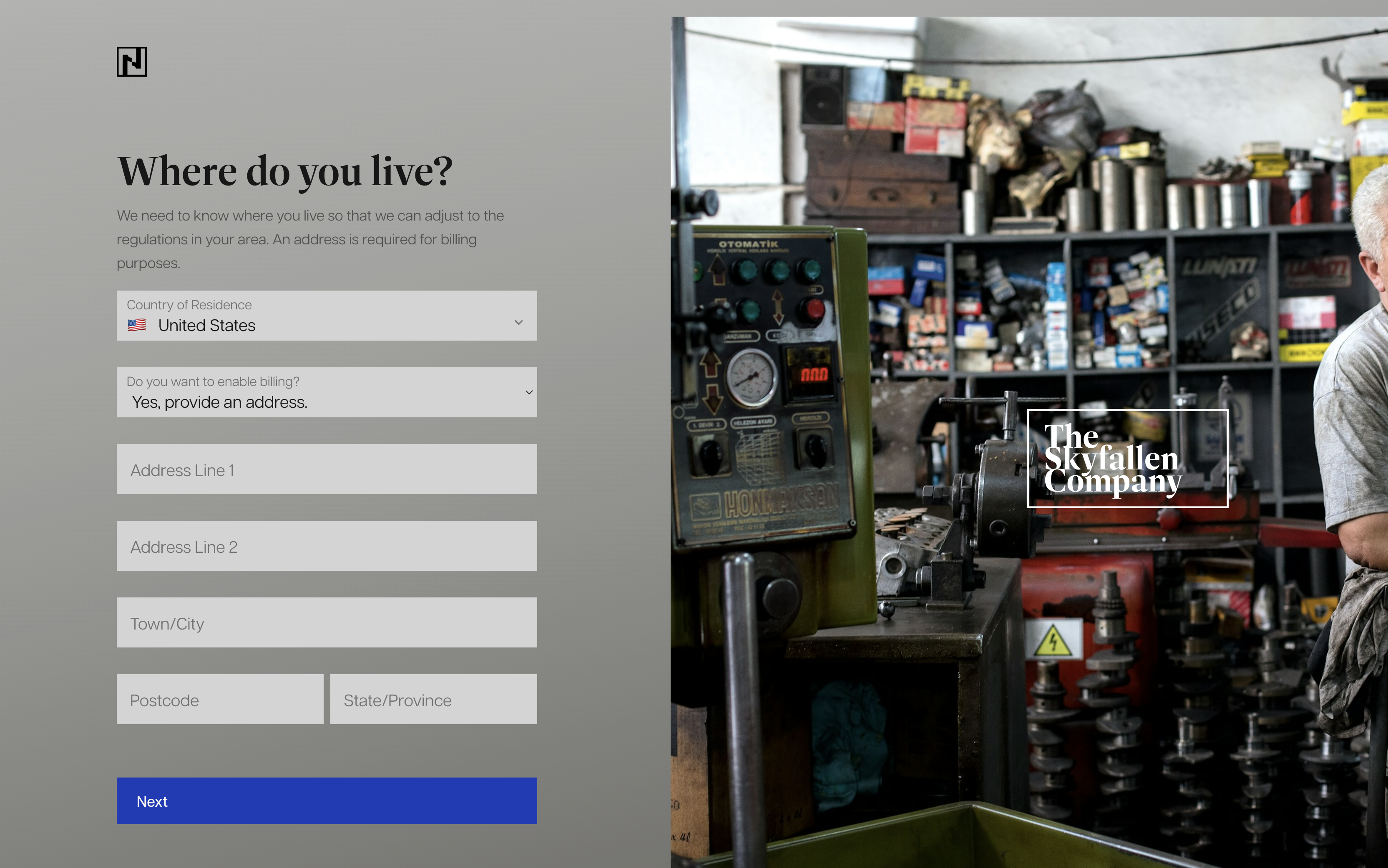
We only need your street address if you plan to create a Skyfallen for Enterprise or Skyfallen Commercial account or if you need to use a paid Skyfallen service. You can always add this later.
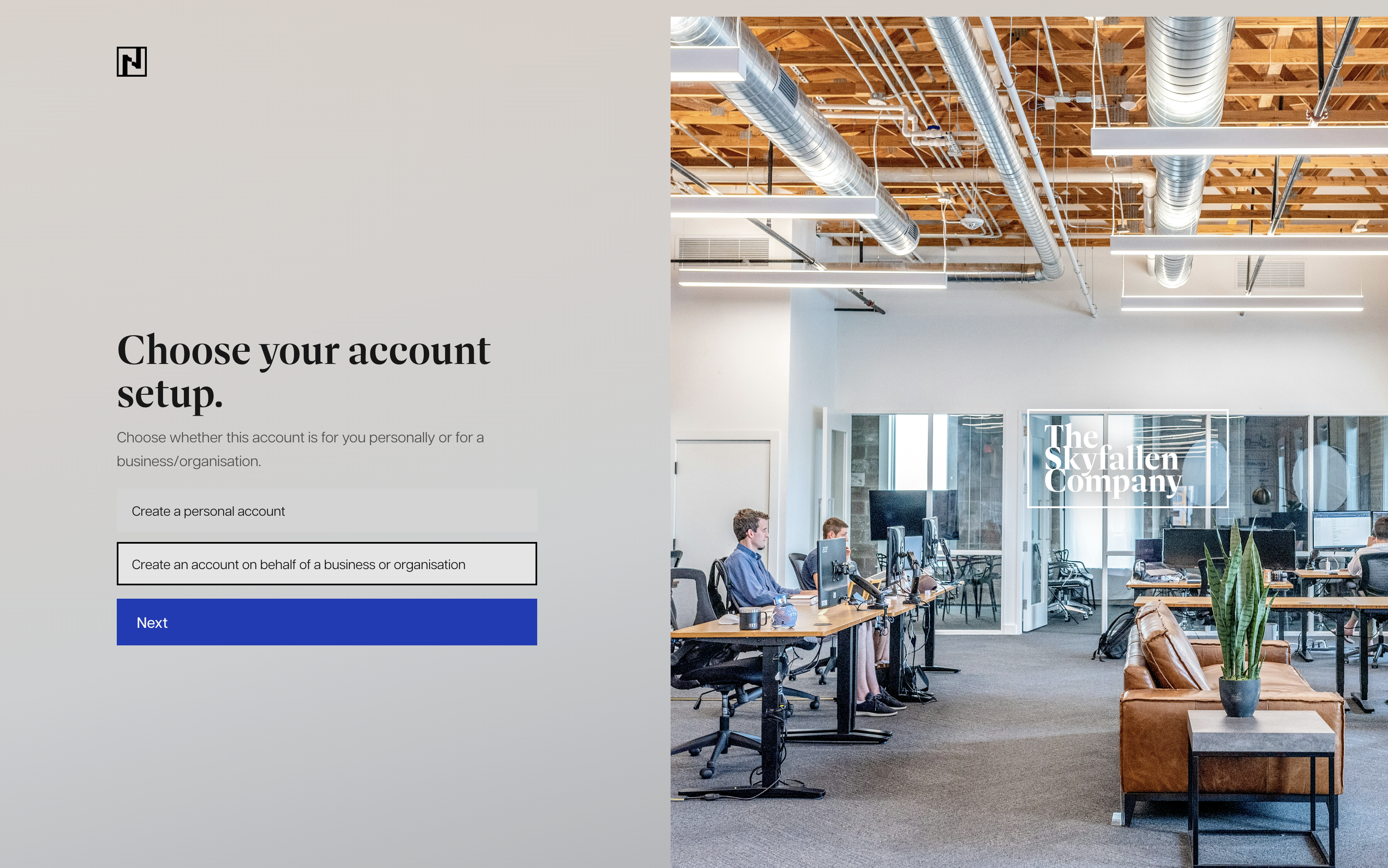
Choose whether this ONE ID is personal or for a business. Pick Create an account on behalf of a business or organisation when you are setting up a commercial or enterprise tenant.
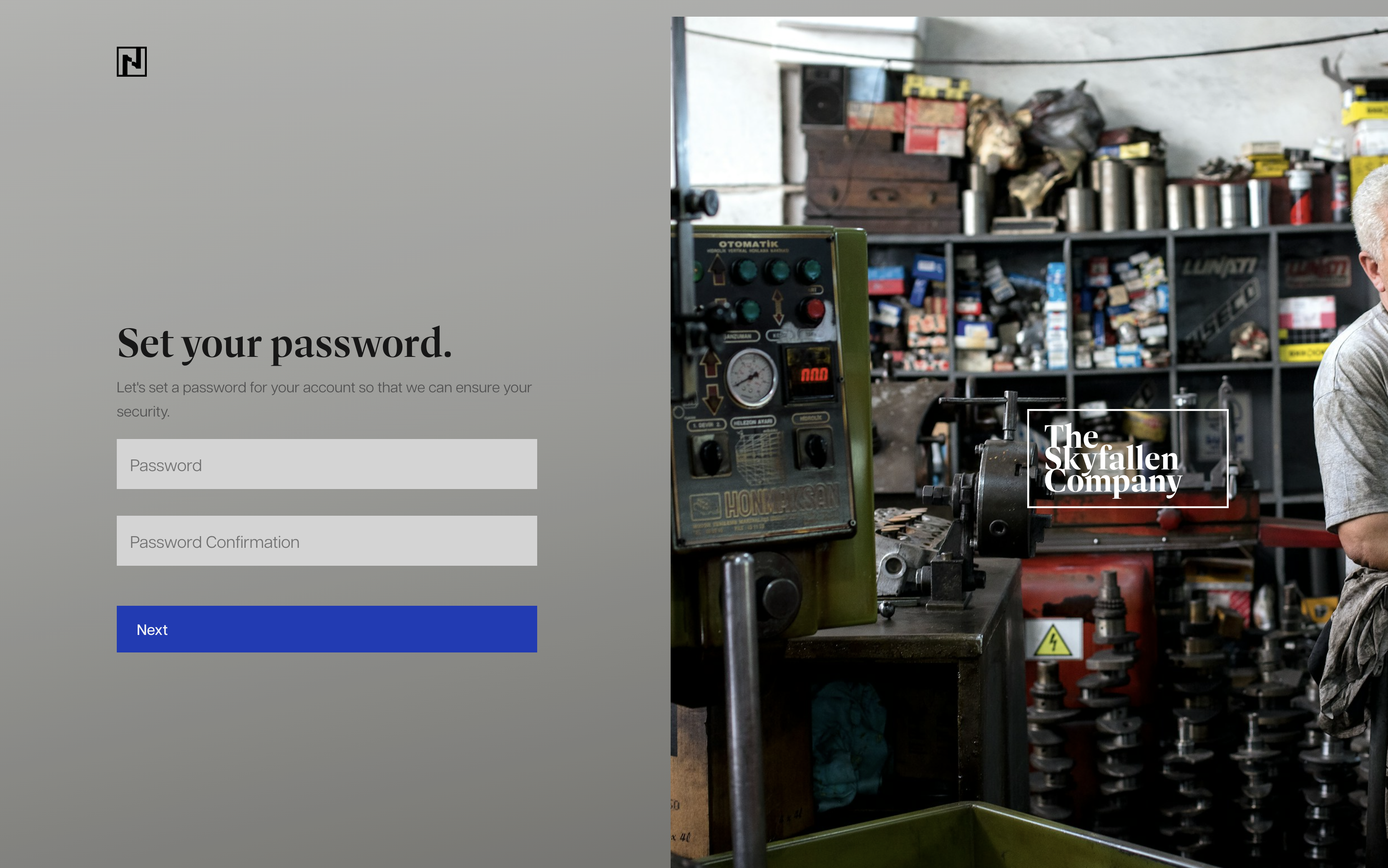
Set a password, then confirm it on the next screen.
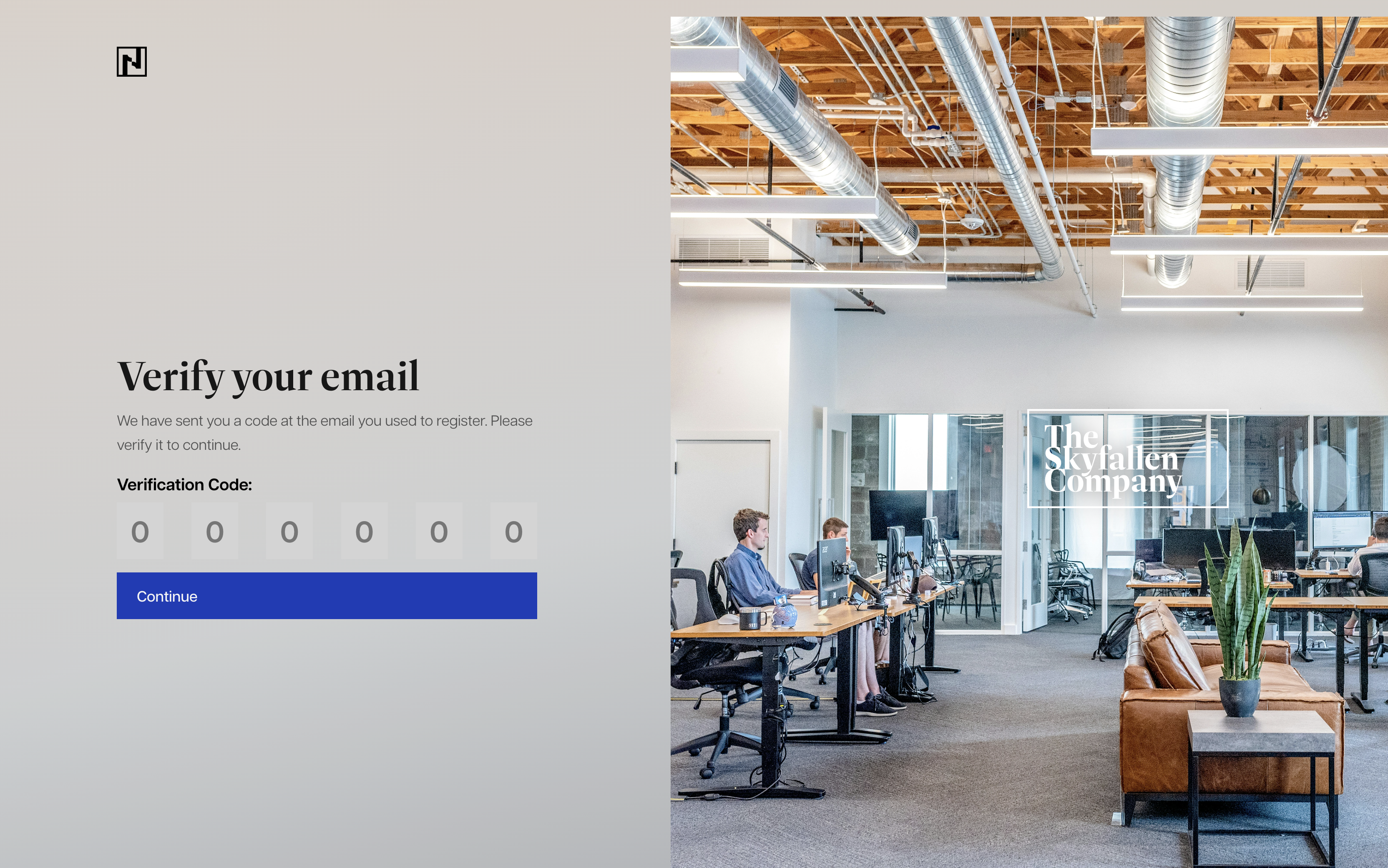
ONE sends a six-digit code to your email. Enter it to finish account registration.
Choose the right tenant
After your ONE ID is verified, ONE asks what kind of tenant you need. You can belong to more than one tenant later, but the first setup flow sets the starting point.
Commercial and enterprise setup collects organisation details, business address, business activity, and legal confirmations. Enterprise setup also creates a Skyfallen Enterprise Customer Reference when the tenant is approved. See Information required for commercial and enterprise tenants for the full field list.
| Tenant type | Use it when |
|---|---|
| Personal | One person needs a ONE ID without organisation administration. |
| Commercial | A small organisation needs a managed tenant and a limited member count. |
| Enterprise | A workforce tenant needs domain-based identity, administration, and Skyfallen enterprise review. |
What ONE checks during sign-up
Sign-up stays strict on purpose:
- Verify your email before using the account.
- Use the organisation domain for enterprise members.
- Submit tenant verification documents to Skyfallen while the tenant is not yet active.
- Switch tenants when your account belongs to more than one.
For enterprise setup, ONE uses the domain from the owner email as the default workforce domain unless the tenant is configured differently later.
After setup
When the tenant becomes active, navigation changes from setup tasks to the account and IAM areas. Owners receive full tenant permissions by default. Other members see only the pages their permissions allow.
If you are setting up an organisation for the first time, read Documents required for tenant verification, then continue with Submit tenant verification documents while the tenant is pending review.