
Getting started · Public
Reset a forgotten password
Recover access with a six-digit code by email or SMS when your organisation allows self-service reset.
Password reset is controlled by your organisation. You can start a reset when at least one of your tenants allows it, or when the enterprise sign-in page you are on permits reset for that tenant.
Administrators with tenant:manage can turn password reset on or off from Organisation in IAM under Platform settings.
Start from sign-in
Open auth and choose Lost your password? from the sign-in options.
If your organisation has an enabled custom domain, you can start the same reset flow on that hostname. Email discovery on the central sign-in page forwards people with matching addresses to the custom hostname automatically.
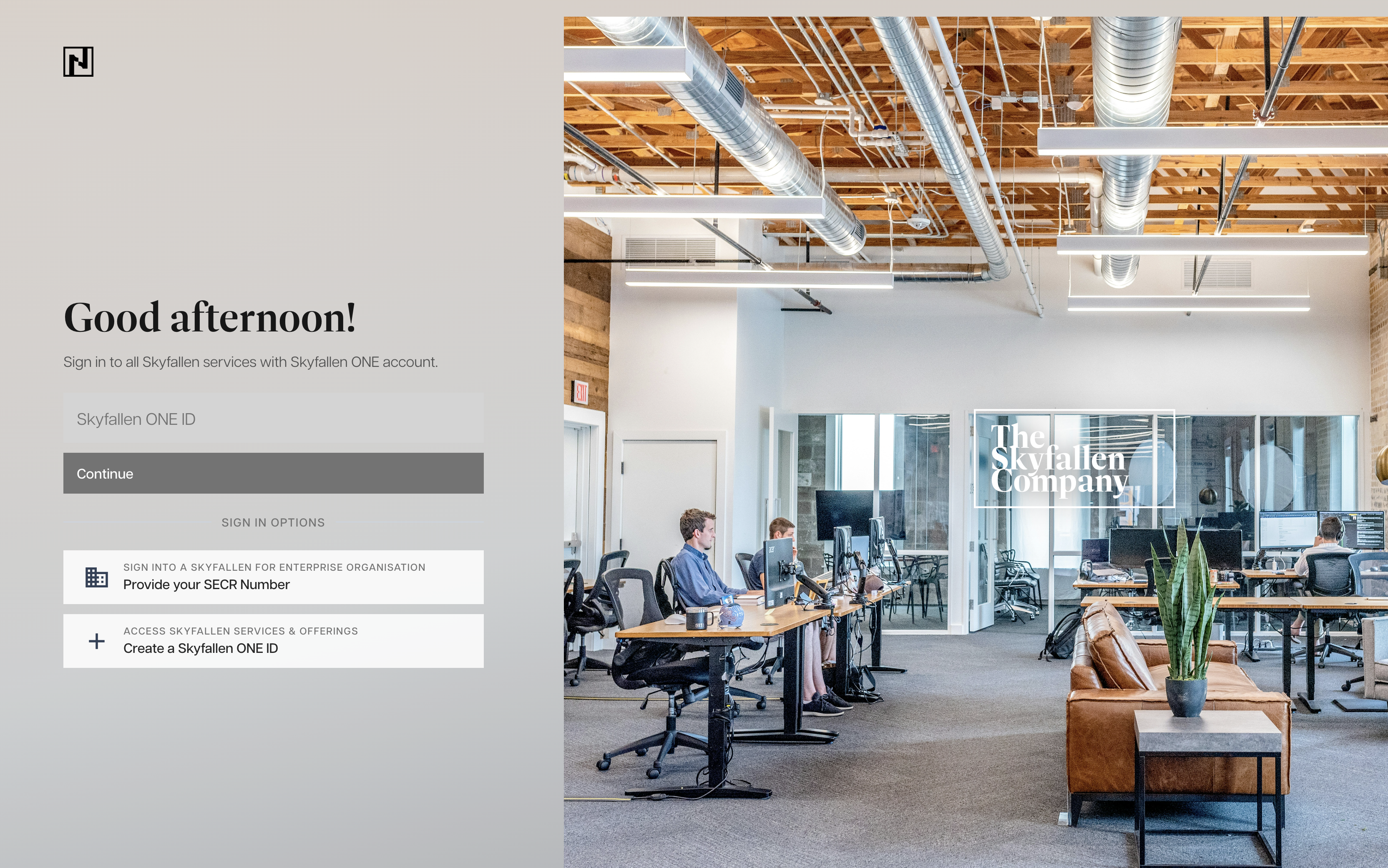
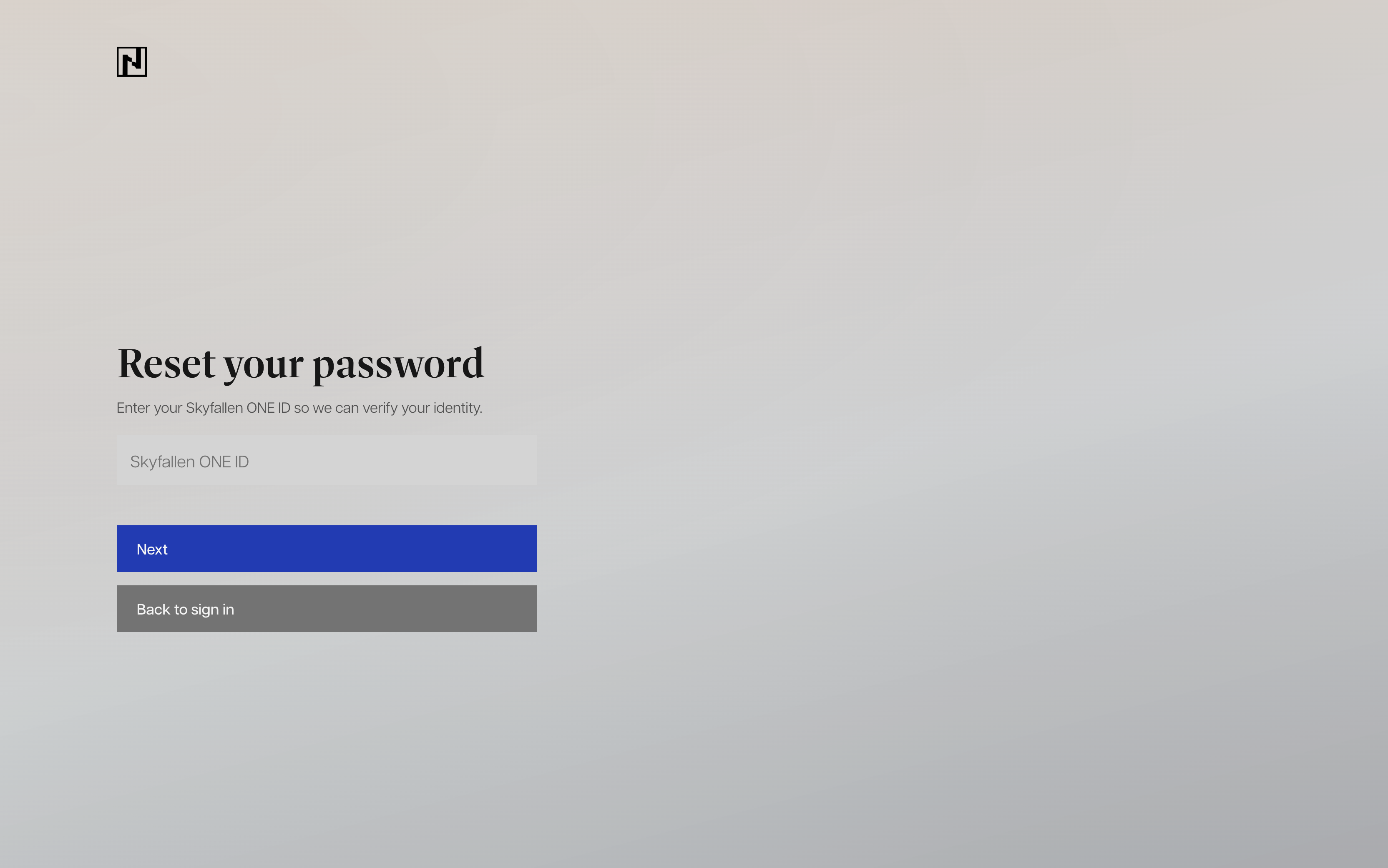
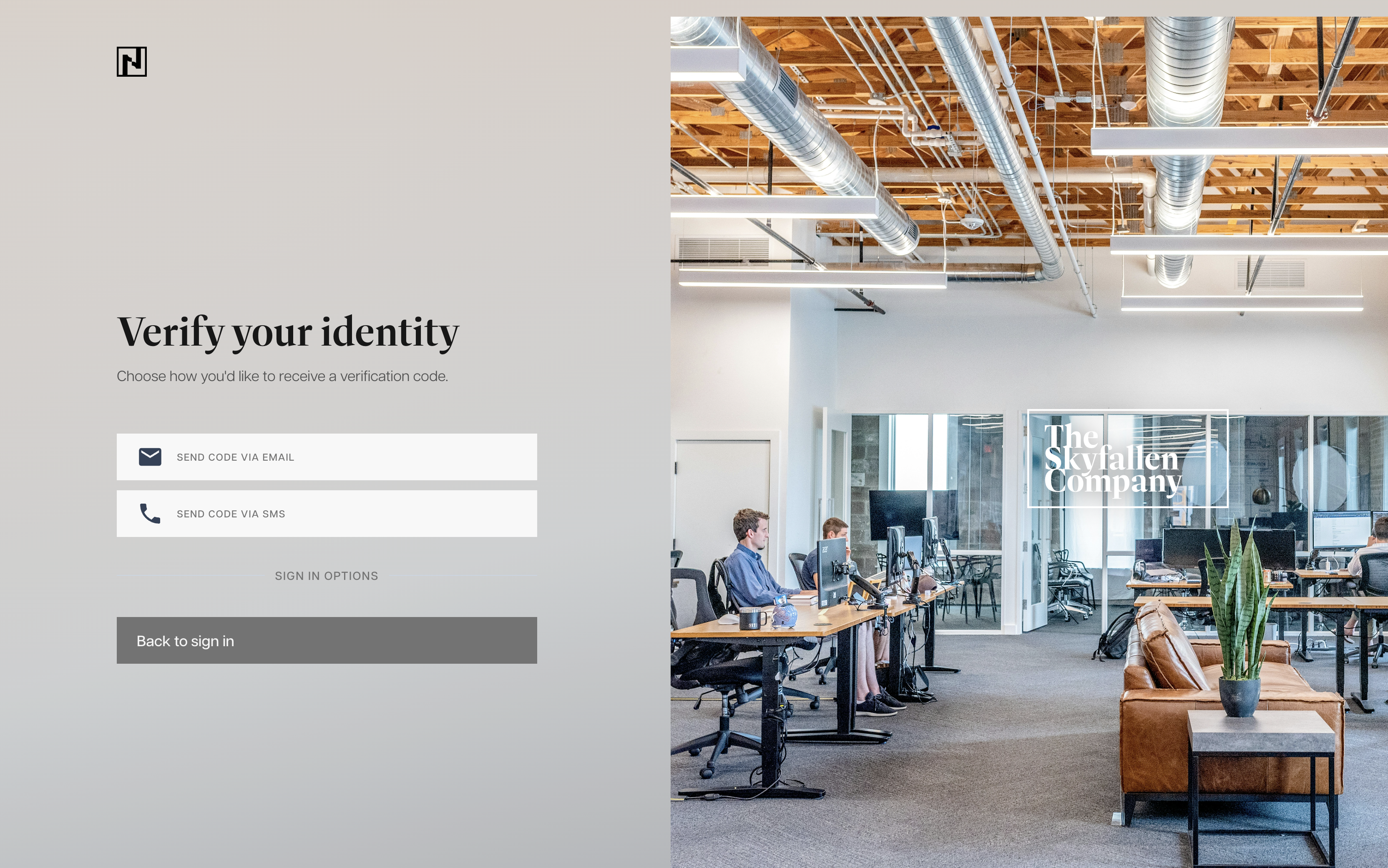
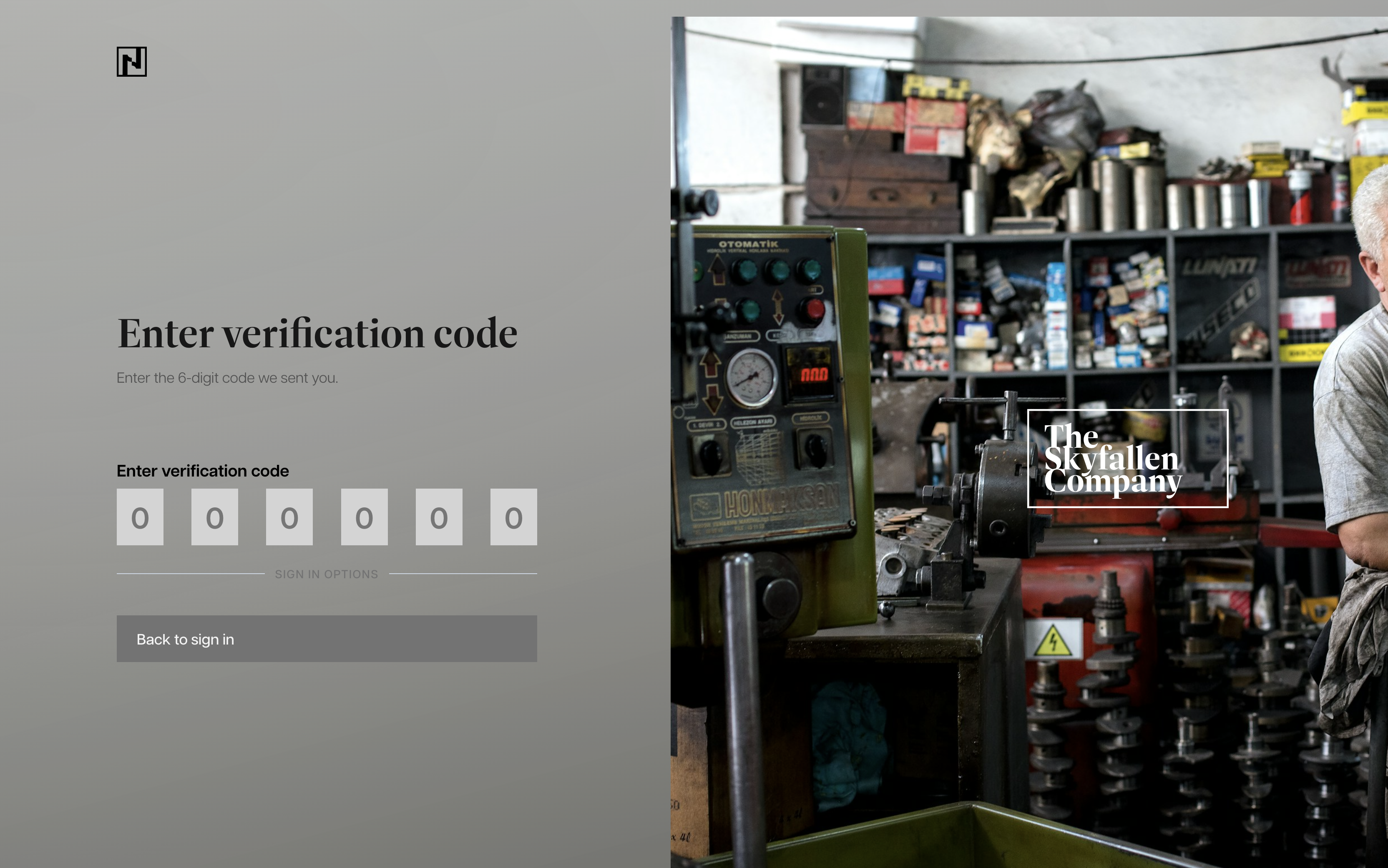
Recovery flow
- Enter your ONE ID email address and choose Next.
- Pick Send code via email or Send code via SMS when both are available.
- Enter the six-digit code. Codes expire after 10 minutes. For SMS, ONE asks for the last four digits of your phone number before sending the code.
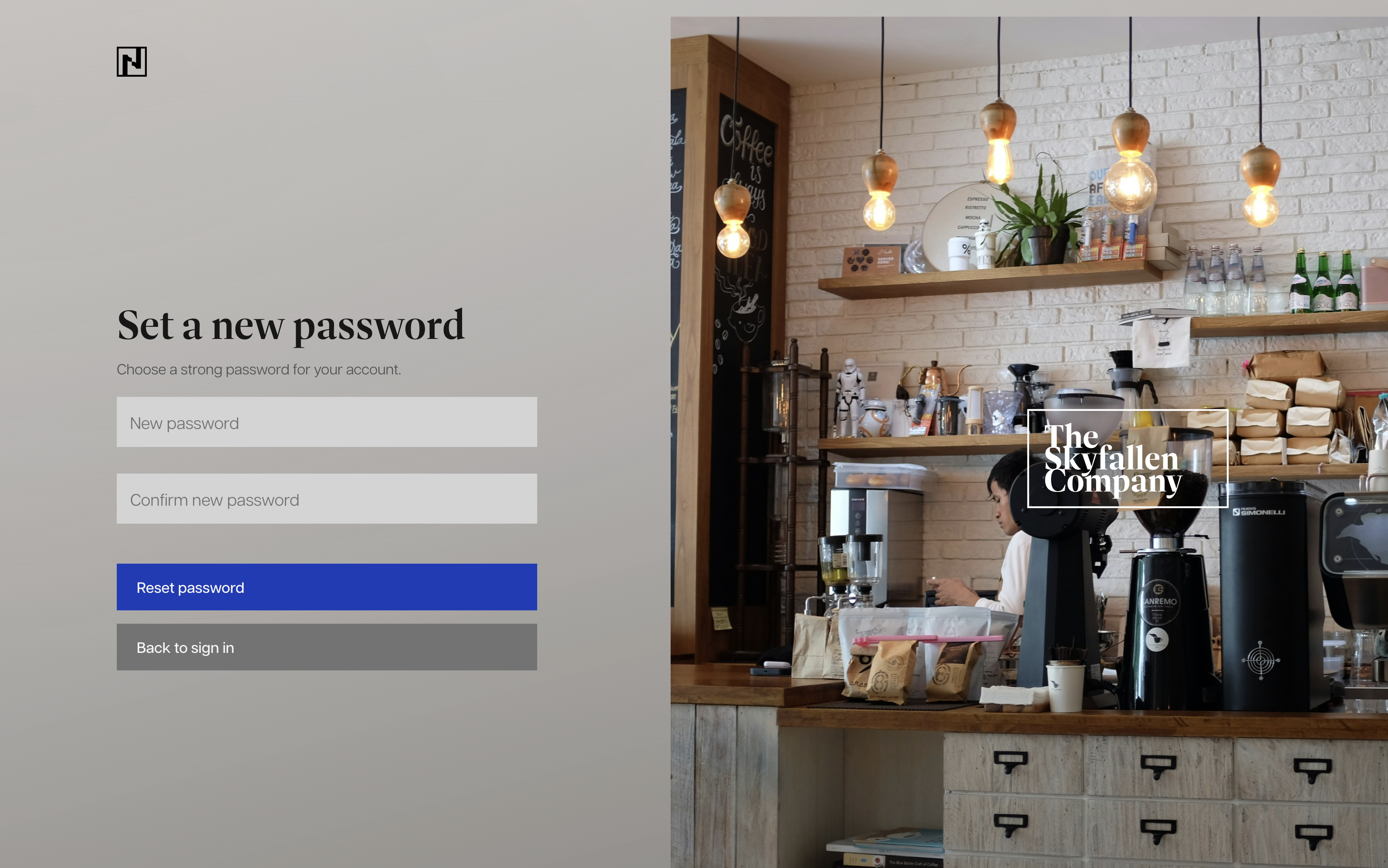
- Set a new password and confirm it.
When reset is unavailable
ONE will not send a code if your account is not covered by a tenant that allows password reset. Contact your organisation administrator or account manager in that case.
If you have passkeys registered, ONE may return you to sign-in after you set a new password so the passkey step can still run.
Admin-created members
Administrators can create members without setting a password. In tenants using legacy SSO migration, those members may be asked to set a Skyfallen ONE password later through the reset and migration flow.